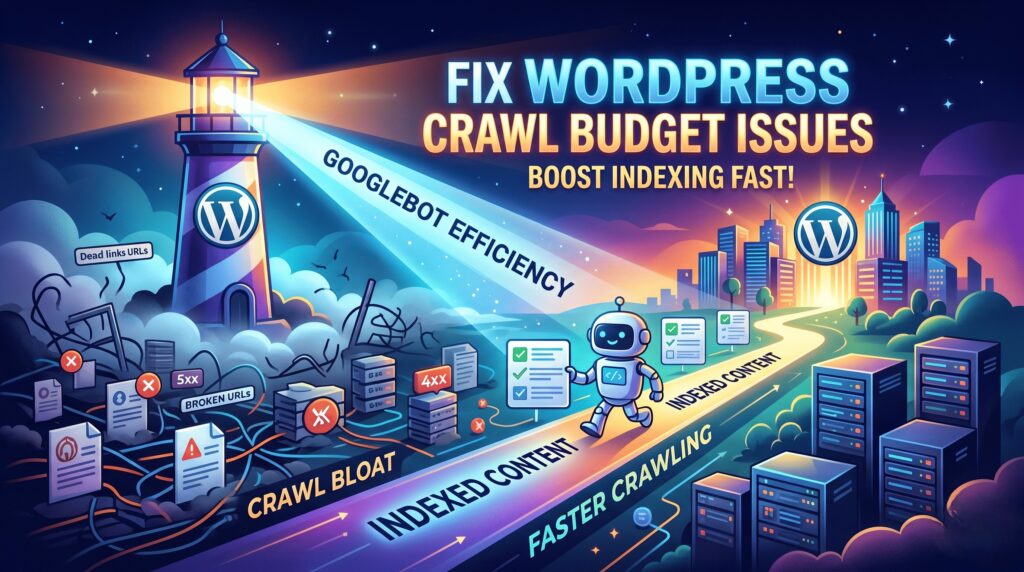

How to Fix WordPress Crawl Budget Issues & Boost Indexing

If you are running a massive WordPress site with thousands of pages, or if you notice that your newly published content takes days—or even weeks—to show up on Google, you likely have an indexing bottleneck. In the SEO world, this is known as a crawl budget issue.
Google doesn’t have infinite resources. It allocates a specific amount of attention to every website on the internet. If your site is cluttered, slow, or poorly organized, Googlebot will waste its time on useless pages and leave before finding your high-value content. Optimizing your wordpress crawl budget is essential to ensuring maximum googlebot efficiency and maintaining your search rankings.
This comprehensive, block-style guide will walk you through exactly how to diagnose crawl issues and optimize your WordPress site for seamless indexing.
Understanding Crawl Budget and Googlebot Efficiency
Before diving into the technical fixes, it is crucial to understand what we are actually trying to solve. Google defines crawl budget as a combination of two main components:
1. Crawl Capacity Limit
How much crawling your server can handle without slowing down or crashing. If your site responds quickly, the limit goes up. If your server struggles, Googlebot backs off.
2. Crawl Demand
How much Google actually wants to crawl your site. Popular sites with frequently updated content naturally enjoy a higher crawl demand.
When we focus on googlebot efficiency, our goal is simple: eliminate technical roadblocks so Googlebot can discover, crawl, and index your most important pages without wasting precious server resources on digital junk.
1. Audit Your Current Crawl Status in Google Search Console
You cannot fix what you haven’t measured. Your absolute first step should be checking how Google currently interacts with your WordPress site.
How to Access the Crawl Stats Report
- Log into your Google Search Console (GSC) dashboard.
- Scroll down to the left-hand sidebar and click on Settings.
- Under the “Crawl stats” section, click Open Report.

Optimize your WordPress technical structure to guide search engine bots directly to your high-value content.
What to Look For
Analyze the charts for sudden drops or spikes in crawl requests. Pay close attention to the By Response breakdown. Ideally, over 90% of your responses should be 200 (OK). If your budget is bleeding into structural issues, your stats will usually mirror this profile:
| Response Code | Crawl Budget Impact | Target Threshold |
|---|---|---|
| 200 OK | Perfect. Content is found and indexed successfully. | > 90% of requests |
| 301 / 302 Redirects | Moderate Waste. Forces bots to hop across multiple URLs. | < 5% of requests |
| 404 Not Found | High Waste. Bot hits dead ends and learns your site is stale. | 0% ideally |
| 500 / 503 Server Error | Critical Danger. Forces Googlebot to drop its crawl rate entirely. | 0% strictly |
2. Upgrade Your Hosting and Boost Server Response Time
Your crawl capacity limit is directly tied to your server’s performance. If Googlebot attempts to crawl your site and encounters slow page load times or frequent 503 “Service Unavailable” errors, it will intentionally throttle its crawl rate to avoid crashing your site.
Actionable Hosting Fixes:
- Ditch Cheap Shared Hosting: Shared environments mean your site shares resources with hundreds of others. If another site spikes in traffic, your server response time tanks. Move to a managed WordPress host or a dedicated VPS.
- Implement Server-Level Caching: Use caching mechanisms like Redis, Memcached, or Page Caching via plugins like WP Rocket or LiteSpeed Cache. This reduces the load on your database, allowing the server to hand pages over to Googlebot instantly.
3. Prune Low-Value and Duplicate Content
WordPress is notorious for creating a massive trail of digital footprint bloat. By default, every time you upload an image, write a post, or assign a tag, WordPress generates multiple unique URLs. This dilutes your wordpress crawl budget.
Eliminate Tag and Category Archives
Unless your category and tag pages drive significant organic search traffic, they are likely just duplicating content found on your main blog feed. Use an SEO plugin like Rank Math or Yoast to set these archive pages to noindex, follow. This tells Googlebot it doesn’t need to index them, saving energy for your actual articles.
Fix Attachment Pages
Historically, WordPress created a separate URL for every single image file uploaded to the media library. Ensure your SEO plugin has the “Redirect Attachment URLs to the attachment itself” setting toggled ON. This instantly deletes thousands of thin, useless pages from Google’s crawl queue.
4. Optimize Your Robots.txt File
The robots.txt file is your primary tool for directing traffic control on your website. It tells search engine bots exactly where they are allowed to go and which folders are strictly off-limits.
⚠️ Warning:
A poorly configured robots.txt file can either completely block Google from indexing your site, or open the floodgates for bots to crawl your administrative files, wasting massive amounts of budget.
A Recommended Robots.txt Structure for WordPress:
User-agent: *
Disallow: /wp-admin/
Allow: /wp-admin/admin-ajax.php
# Block internal search results
Disallow: /?s=
Disallow: /search/
# Block trackbacks
Disallow: /trackback/
Disallow: /xmlrpc.php
Sitemap: https://yourdomain.com/sitemap_index.xml
Blocking internal search result URLs (/?s=) is incredibly important. Spambots love to target internal search bars, creating infinite variations of dynamic URLs that Googlebot may accidentally try to crawl.
5. Master Internal Linking and Clean Up Redirect Chains
Googlebot navigates the web by following links. If your site architecture looks like a messy spiderweb, the bot will get stuck in loops or completely miss deep-lying pages. A clean, logical internal linking structure ensures maximum googlebot efficiency.
Eliminate Redirect Chains
A single redirect (Page A → Page B) is perfectly fine. However, over years of site migrations and URL changes, sites often develop redirect chains (Page A → Page B → Page C → Page D). Every step in that chain forces Googlebot to make a new request, draining its capacity. Use tools like Screaming Frog to locate redirect chains and update your internal links to point directly to the final destination URL.
Fix Broken Links (404s)
Nothing kills a crawl budget faster than a dead end. Periodically scan your site for broken internal links and either remove them or update them to active pages. You can find these easily under the “Crawl Stats” or “Indexing” report in Google Search Console.
6. Streamline Dynamic XML Sitemaps
Your XML sitemap is a roadmap given directly to search engines. If your roadmap contains broken routes, outdated roads, or non-existent destinations, Googlebot will quickly lose trust in it.
Sitemap Best Practices:
- Only Include 200 OK Pages: Ensure that your sitemap only contains pages that return a 200 OK status code. Absolutely no 404 pages, redirected URLs, or pages containing a
noindextag should ever live in your XML sitemap. - Break Down Large Sitemaps: If your WordPress site has tens of thousands of URLs, split your sitemaps into smaller, categorized segments (e.g., post-sitemap.xml, page-sitemap.xml, category-sitemap.xml). Most modern WordPress SEO suites handle this automatically.
Conclusion: Strategic Site Maintenance Pays Off
Managing your wordpress crawl budget isn’t a one-time task; it is an ongoing process of keeping your website lean, fast, and structured. By prioritizing googlebot efficiency through clean code, optimized server speeds, smart robots.txt configurations, and proactive error cleanup, you ensure that search engines can easily index your fresh content the moment it goes live.
Need Help Maximizing Your Site’s Crawl Efficiency?
When search bots spend less time fighting through digital clutter and more time consuming your valuable content, your overall organic visibility will naturally skyrocket.